Connect Slack to Ansehn to bring your AI visibility insights straight into the
channels where your team already works. Once connected, Ansehn can:
Post AI Visibility Reports to Slack automatically — every time a new report
is generated, a summary and a link are delivered to a channel you choose.
Send messages to Slack from the Ansehn Copilot — ask the Copilot to share a finding, metric, or summary with your team, review it, and post it to Slack.
This guide walks you through connecting Slack, choosing where messages go, and managing the integration.
Before you start
You need to be an owner or admin of your Ansehn organization to connect or
disconnect Slack. (Team members can still trigger Copilot messages once the
connection exists, subject to their permissions.)
You need permission to approve app installations in your Slack workspace, or
the help of a Slack workspace admin who can approve it for you.
The Slack connection is configured per project, so you can send different
projects' reports to different channels or workspaces.
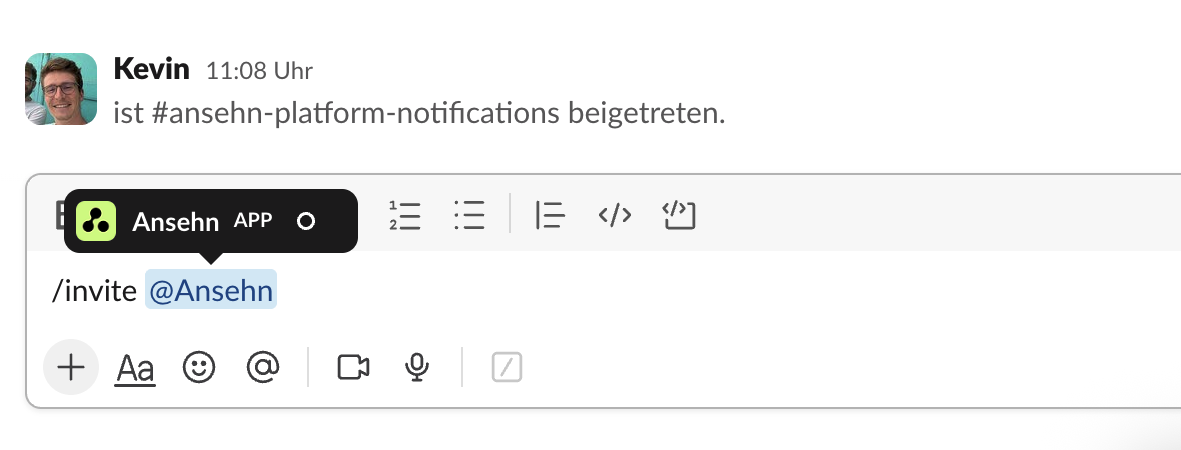
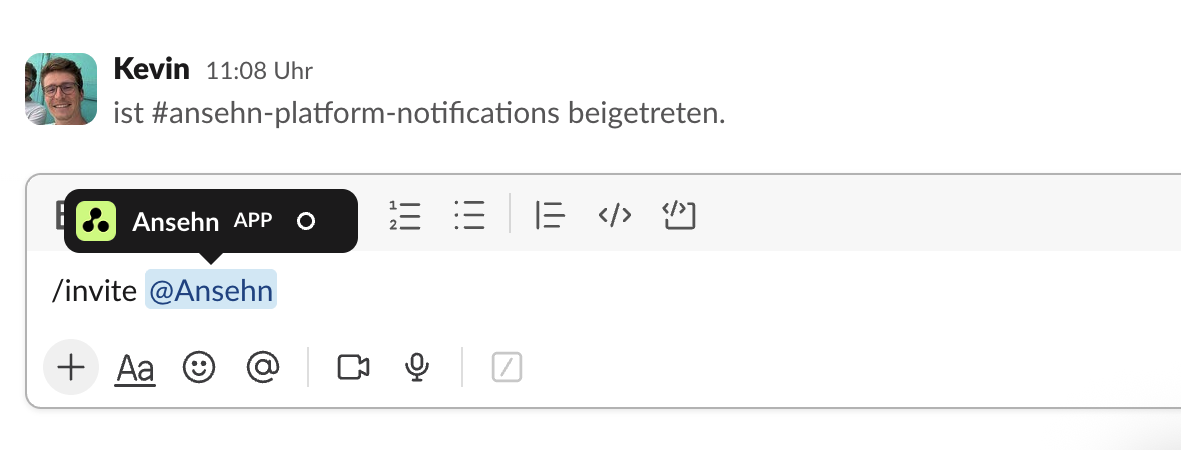
Important:Ansehn can only post to a Slack channel it has been invited to: Before Ansehn can send a report notification or a Copilot message to a channel, open that channel in Slack and run /invite @Ansehn
(or Channel details → Integrations → Add apps). This applies everywhere: automatic report notifications and messages you send through the Copilot. If Ansehn isn't a member, the message will fail — even for public channels.
Connect Slack
Open the project you want to connect.
Go to Settings → Connectors.
Find the Slack card and click Connect.
A Slack window opens asking you to allow Ansehn access to your workspace.
Review the requested permissions and click Allow.
You'll be returned to Ansehn and the Slack card will show a green
Connected status.
Tip: If the Connect button is greyed out or you see a message that
integrations aren't available, the feature hasn't been enabled for your
environment yet — contact Ansehn support.
Choose a default channel for reports
After connecting, pick the channel where automatic report notifications should be
posted:
On the connected Slack card, open the Default channel for report
notifications dropdown.
Select a channel from the list.
Click Save.
Important - invite Ansehn to the channel first: Ansehn can only post to channels it has been added to, whether the channel is public or private.
Before selecting a channel, open it in Slack and type /invite @Ansehn
Automatic report notifications
Once a default channel is set, Ansehn posts a message to that channel whenever a
new AI Visibility Report is generated for the project. Each message includes:
A short summary of the report.
A direct link to open the full report in Ansehn.
You don't need to do anything to receive these — they arrive automatically. If a
report is generated while Slack is briefly unavailable, Ansehn retries delivery,
so you won't miss a report.
Send messages from the Ansehn Copilot
You can also use Slack on demand through the Ansehn Copilot:
Open the Copilot and ask it to share something with your team, for example:
"Send our win rate for this week to Slack."
The Copilot prepares a message and shows you a preview, including the
destination channel.
Review the content and channel, then confirm to send.
Ansehn posts the message to Slack and confirms it was delivered.
Nothing is ever sent to Slack without your explicit confirmation — the Copilot
always proposes first and only posts after you approve.
Reminder: Ansehn must be a member of the channel you're sending to, whether
it's public or private. If a Copilot send fails, the most common cause is that
Ansehn hasn't been invited yet — open the channel in Slack and run
/invite @Ansehn, then send again.
Manage the integration
On the Settings → Connectors page you can:
Change the default channel — pick a different channel and click Save.
Disconnect Slack — click Disconnect on the Slack card. Ansehn will stop
posting to Slack immediately and remove its stored access.
Reconnect — click Connect again at any time to restore the integration
(for example, after rotating access or changing workspaces).
Privacy & security
Ansehn connects to Slack using Slack's official, secure OAuth flow. Your Slack
credentials are never shared with or stored by Ansehn — only a securely
managed access token is used on your behalf.
Ansehn requests the minimum permissions needed: to list channels, post
messages, and confirm delivery of its own messages.
Ansehn does not read your team's Slack conversations. It only checks its own
recent messages to avoid posting duplicates.
You can revoke access at any time from Ansehn (Disconnect) or from your
Slack workspace's app management settings.
Troubleshooting
The "Connect" button is disabled.
The integration isn't enabled for your environment. Contact Ansehn support.
No channels appear in the dropdown after connecting.
Ansehn may not have permission to list channels, or the connection didn't
complete. Try Disconnect and Connect again. If it persists, contact
support.
"Ansehn isn't in the channel" / messages don't reach a channel.
Ansehn must be a member of the target channel — this applies to both public and
private channels. In Slack, open the channel and type /invite @Ansehn, then
try again.
A report notification didn't arrive.
Check that a default channel is set and saved, and that Ansehn has been
invited to that channel (required for public channels too). Ansehn
automatically retries delivery, so late messages may still appear shortly after.
A Copilot message didn't send.
Make sure you clicked confirm on the preview and that Ansehn has been invited
to the selected channel (required for public and private channels alike).
Frequently asked questions
Can I send different projects to different Slack channels or workspaces?
Yes. Slack is connected per project, so each project has its own connection and
default channel.
Will Ansehn read our Slack messages?
No. Ansehn only posts its own messages and checks its own recent posts to prevent
duplicates. It does not read your team's conversations.
Who can connect or disconnect Slack?
Organization owners and admins. Sending messages through the Copilot depends on
your role's permissions within the project.
What happens if I disconnect?
Ansehn immediately stops posting to Slack and removes its stored access. You can
reconnect at any time.
Need help? Reach out to Ansehn support and we'll get you set up.